EyePrompt press kit
In one sentence
EyePrompt is a teleprompter for iPhone, iPad and Mac that keeps your script in a narrow band right under the camera, so you can read every word while your eyes stay near the lens.

Facts
- Name
- EyePrompt Teleprompter Camera
- Developer
- Beonbrand Inc., Canada (beonbrand.ca)
- Platforms
- iPhone (iOS 17 or later), iPad (iPadOS 17 or later), Mac (macOS 14 or later)
- Released
- iPhone July 2026; native iPad app in version 1.3.0; Mac September 2026
- Current versions
- iOS and iPadOS 1.6.2, Mac 1.1.1
- Price
- Free to download. Pro: $7.99 a month, $39.99 a year with a 7-day free trial, or $99.99 once (US prices). One purchase covers iPhone, iPad and Mac.
- Languages
- The app in nine: English, Turkish, German, Spanish, French, Brazilian Portuguese, Japanese, Korean, Italian
- Privacy
- No account and no upload. Scripts, recordings and speech recognition stay on the device, and the app works in Airplane Mode. App Store privacy label: Data Not Collected.
- App Store
- https://apps.apple.com/app/id6789464484
- Recognition
- Selected by App Store editors for "Our Latest Discoveries" on the US App Store, September 2026
- Ratings
- App Store ratings differ by country; see the App Store listing.
Key features
- Reading band at the lens. The script scrolls in a narrow band right under the front camera (on Mac, under the Mac's camera), with one line in focus.
- Horizontal recording. On iPhone, turn the phone sideways on the recording screen and the script moves into a short column right beside the front camera, with the line you read level with the lens; the take saves as 16:9 video. Before a take, Aa sets the column's text size, width and lines (Use recommended: 22 pt, 20 characters, 3 lines); during a take, the tray changes the text size, width and speed. Review turns with the phone. On by default; Settings, Recording, Horizontal recording turns it off. The gaze sits close to the lens but slightly to the side of it, not just below it as when the phone is upright. Not on iPhone Duo, whose recording screen stays upright; the iPad app turns its whole screen and records in either orientation.
- Smart Follow. Moves the script at the pace you speak, waits while you pause or ad-lib, and catches up when you skip ahead. Speech recognition runs on the device, in the language the script is written in, and is never sent to a server. On by default on Mac, and on iPhone and iPad from version 1.4, when the device's language supports on-device recognition. From version 1.6.1 on iPhone and iPad, it starts with your voice, not a breath or a noise, and no longer jumps ahead after a pause. On Mac, from version 1.0.6, a recognized word moves the band only when it continues the script from your place, so other people talking on a call do not move it. From version 1.6.2 on iPhone and iPad, it finds your place again after mishearing a few words and keeps going, the recording screen shows which language it is listening in (guessed from the script), and you can pick the language and accent there.
- Smart Pause. Holds the script when you stop talking and starts it again when you speak. It measures loudness only and recognizes no words.
- Eye Contact Score. After each front-camera take in the default Eye contact style on iPhone and iPad, an estimate of how steady your head and gaze stayed compared with where they were for most of the take, with a timeline of the moments you moved away. It is not how viewers judge eye contact, and it never edits your eyes or your video.
- Eye Contact focus and Lens Lock. Lights only the line at the lens. Shows one line at a time, held still under the camera.
- Mac. A reading band under the Mac's camera that floats above Zoom, Google Meet, Microsoft Teams, FaceTime or Keynote without taking focus, hidden from screen sharing in supported apps, plus a Studio to record, trim and export with captions and, from version 1.0.6, a background of your choice. From Mac version 1.1.1, Studio starts with you: the band follows from your first words. On Mac, drag the band anywhere, drag a side edge to resize it, or double-click it to centre it under the camera; the position is saved for each display. Option-Command shortcuts work from inside any app: B shows or hides the band, P plays and pauses, R goes back to the top, and the two keys right of 0 change the speed. From Mac version 1.1.1, the band shows what it is doing (Following, Waiting for you, Paused and more) and its caret turns amber while it waits for you; Find my place (Option-Command-L) moves the band to your last words, and Option-Command-{ and } jump between sections; pointing at the band shows its controls, and the Prompter page offers 3 or 4 rows.
- Studio background. On Mac, from version 1.0.6, Studio can put something other than your room behind you: Off, Blur, one of four backdrops drawn by the app (Studio, Dusk, Slate, Paper) or your own picture. The take is recorded clean, so you can change the background after the take. Off and Blur are free; the backdrops and your own pictures are part of Pro, and you can try them before you export. The Mac separates you from the room with Apple's Vision framework, and nothing is uploaded. If the macOS Background video effect is also on, Studio says the two stack.
- Captions. Caption files (.srt), free on every version. From version 1.4 on iPhone and iPad, captions also go into the video: pick a style in Review (None by default), watch the take play with it, and Save or Share exports exactly that. With Speech Recognition allowed, those captions are timed to what you said, recognized on the device from the take's audio and lined up with your script, so the words you read keep its spelling; without it they follow the script as the prompter timed it. From version 1.6 on iPhone and iPad and 1.1 on Mac, the captions studio has 13 styles (Clean and Subtitle are free, the other 11 are Pro, and any style can be tried on a take first), the caption file matches the captions in the video, and you can fix any word the app misheard. Earlier versions made the caption file from the script and the prompter's timing.
- Captions studio. From version 1.6 on iPhone and iPad and 1.1 on Mac (Studio takes), the captions studio: 13 caption styles, from Clean and Subtitle to Karaoke, Neon and News, with Look options (position and size are free; colour, font, case, words and motion are Pro); an optional Name card with a name and a title for the first seconds of the take; a fix for any word the app misheard; and a full-screen preview with guides for Reels, TikTok, Shorts, YouTube and LinkedIn that dim where each platform's buttons and text cover the video. Captions start Off and stay optional. Save them in the video, as an .srt file, or both. Words in right-to-left scripts, such as Arabic and Hebrew, are laid out right to left.
- Second language. From version 1.6 on iPhone and iPad (iOS 18 or later) and 1.1 on Mac (macOS 15 or later): adds a translation of the captions, under your words or in their place, labelled Translated. Apple's Translation translates on the device with a language installed on it; the first time a language is needed, the system may ask to download it from Apple. Right-to-left languages are not offered as a translation yet. Part of Pro, and it can be tried on a take first.
- Takes and Edit. From version 1.6 on iPhone and iPad and 1.1 on Mac: Takes shows every take in one place, to save or share several at once with presets for each platform; on iPad a take can be dragged out to Files or another app. Edit trims a take, or Clean ends cuts the quiet at both ends; Shape reframes it to 9:16, 4:5, 1:1 or 16:9 around your face; a cover, a title and your own music (and on Mac a background) finish it, and it exports for several platforms in one go. Trim, Clean ends, a cover, a title and exports in the take's own shape are free; Shape's reframing, music and some title options are Pro and can be tried first.
- Takes kept safe. From version 1.6.1 on iPhone and iPad, if a call, full storage or leaving the app stops a take, the take is saved and Review says why. If EyePrompt closes during a take, the take comes back in Takes as Recovered. Saves to Photos are checked, and if one cannot finish, the take stays in the app.
- Say it again. From version 1.6 on iPhone and iPad and 1.1 on Mac (Studio): when you start a sentence over, EyePrompt offers to cut the first try, with Play the join, Keep, Remove and Undo for each cut, and the captions and the .srt follow the cut. It uses on-device speech recognition, so Speech Recognition must be allowed. Saving a take with the cuts is Pro.
- Hands-free keys. From version 1.6 on iPhone and iPad, with a keyboard or a presentation clicker: Space records and stops, the arrow keys and Page Up and Page Down move the script a line, P pauses, and the plus and minus keys change the speed. On Mac, from version 1.1, during a Studio take the arrow keys or a clicker move the band a line, P pauses, plus and minus change the speed, and Space stops the take.
- Stop when I finish. From version 1.6 on iPhone and iPad (Settings) and 1.1 on Mac (Studio): an option, off by default, that ends the take after your last line: 1.5 seconds after the last word with Smart Follow, or after the reading time and 3 seconds of quiet without it.
- Face to face. From version 1.4 on iPhone and iPad, an optional reading style chosen take by take under Flip camera: the band sits lower, over your face, like a video call, so viewers see you looking just below the camera. Those takes get no Eye Contact Score, and the next take starts in the default Eye contact style again.
- Script Coach. On iPhone and iPad from version 1.4, and on Mac from 1.0.5, where Apple Intelligence is available: fits a script to 30, 60 or 90 seconds by keeping your most important sentences, in your own words, using Apple's on-device model. Nothing is rewritten, and the shorter version replaces your script only if you choose it.
- Siri, Shortcuts and Spotlight. From version 1.4 on iPhone and iPad, Siri and the Shortcuts app can open, record or rehearse a script, and Spotlight finds scripts by title. On Mac, from version 1.0.6, they can open a script, show it on the band, open it in Studio ready to record, or create a new one, and Spotlight finds scripts by title on macOS 15 or later. The device gets each script's title and word count, never its text.
- iPhone Duo. On iPhone Duo, from version 1.5, the band sits at the real lens on both screens: on the outer screen, where the camera is in a corner, and on the inner screen, open or partly folded. From version 1.6.1, the inner display shows Takes in larger tiles.
- Outer screen. On iPhone Duo, from version 1.5, with the phone open and the rear camera on, the script shows on the outer screen, facing the person in front of the camera. The option is called Outer screen, and you can turn it off. Takes filmed with the rear camera get no Eye Contact Score.
How it differs
EyePrompt does not correct your eyes with AI. It moves the text to the camera so your real gaze stays near the lens, and the Eye Contact Score then estimates how steady it stayed. AI eye contact correction vs real eye contact explains the two approaches neutrally, with each maker's own sources.
Assets
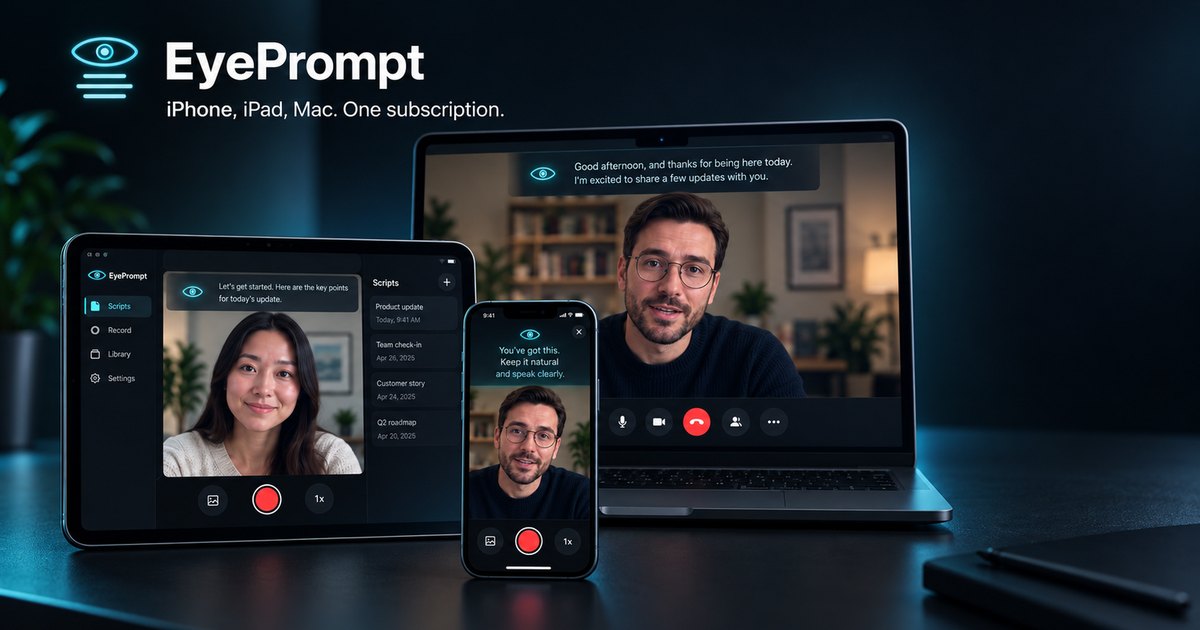
- Product image: iPhone, iPad and Mac (1200 × 630)
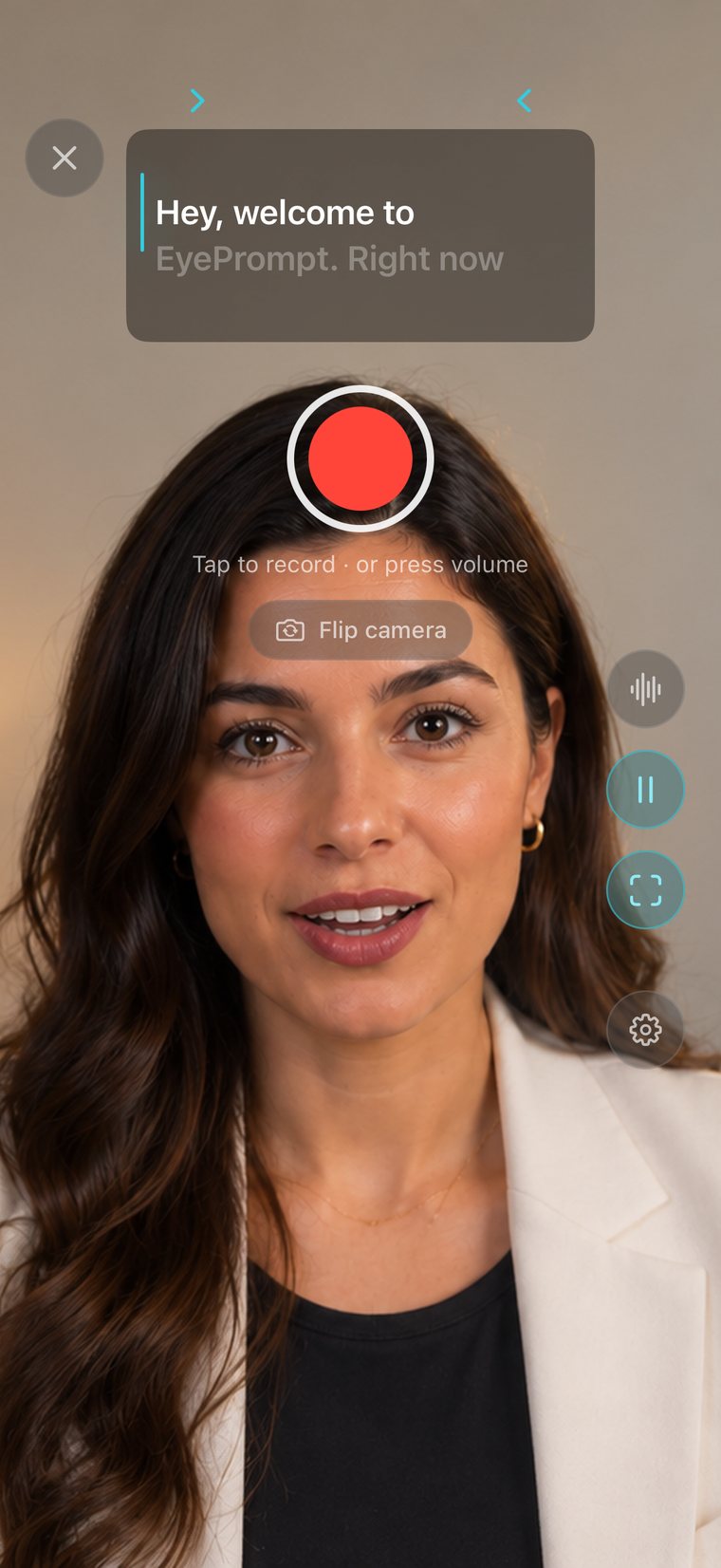
- Recording screen with the band under the camera
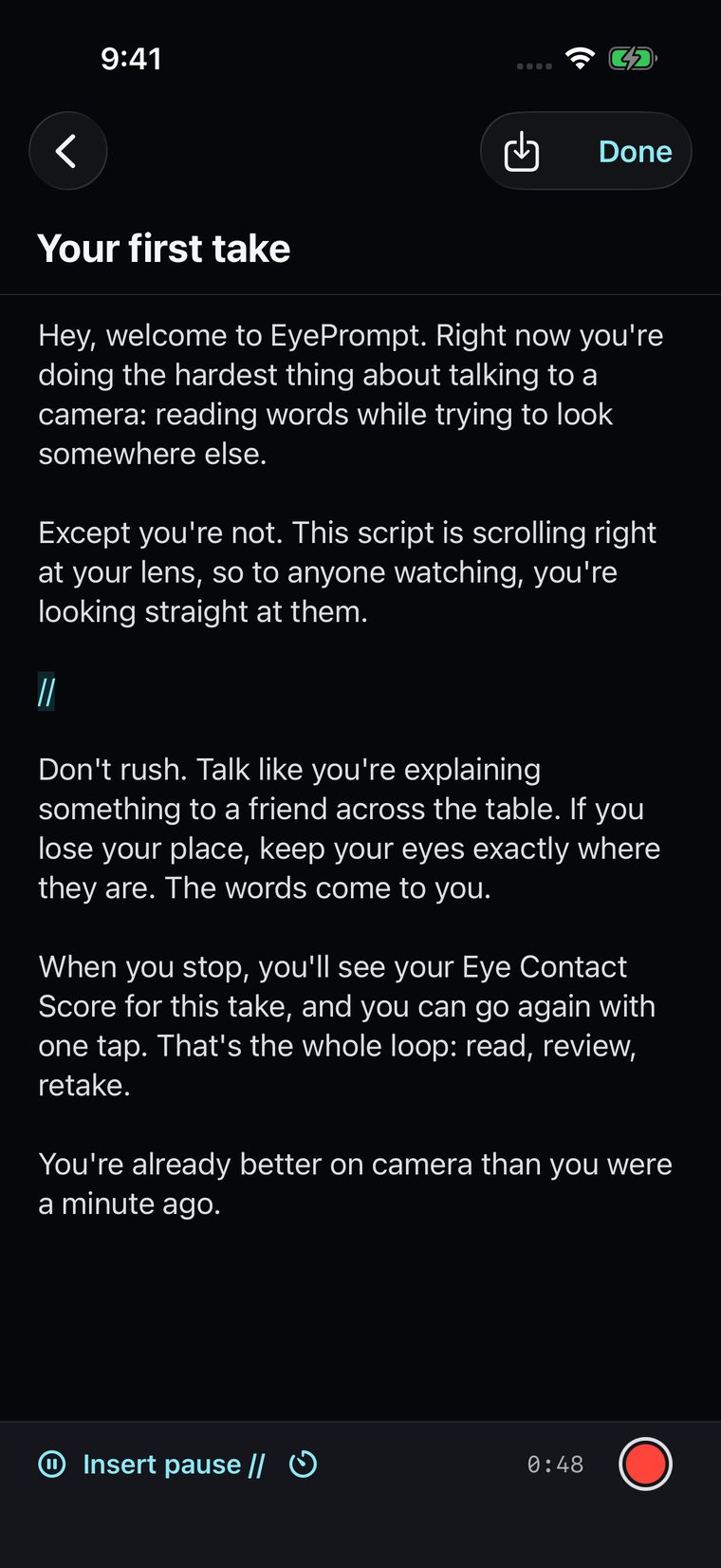
- Script editor
- Review with the Eye Contact Score
- App icon (512 × 512)
- EyePrompt in 56 seconds (video, MP4; each language's home page has it in that language)
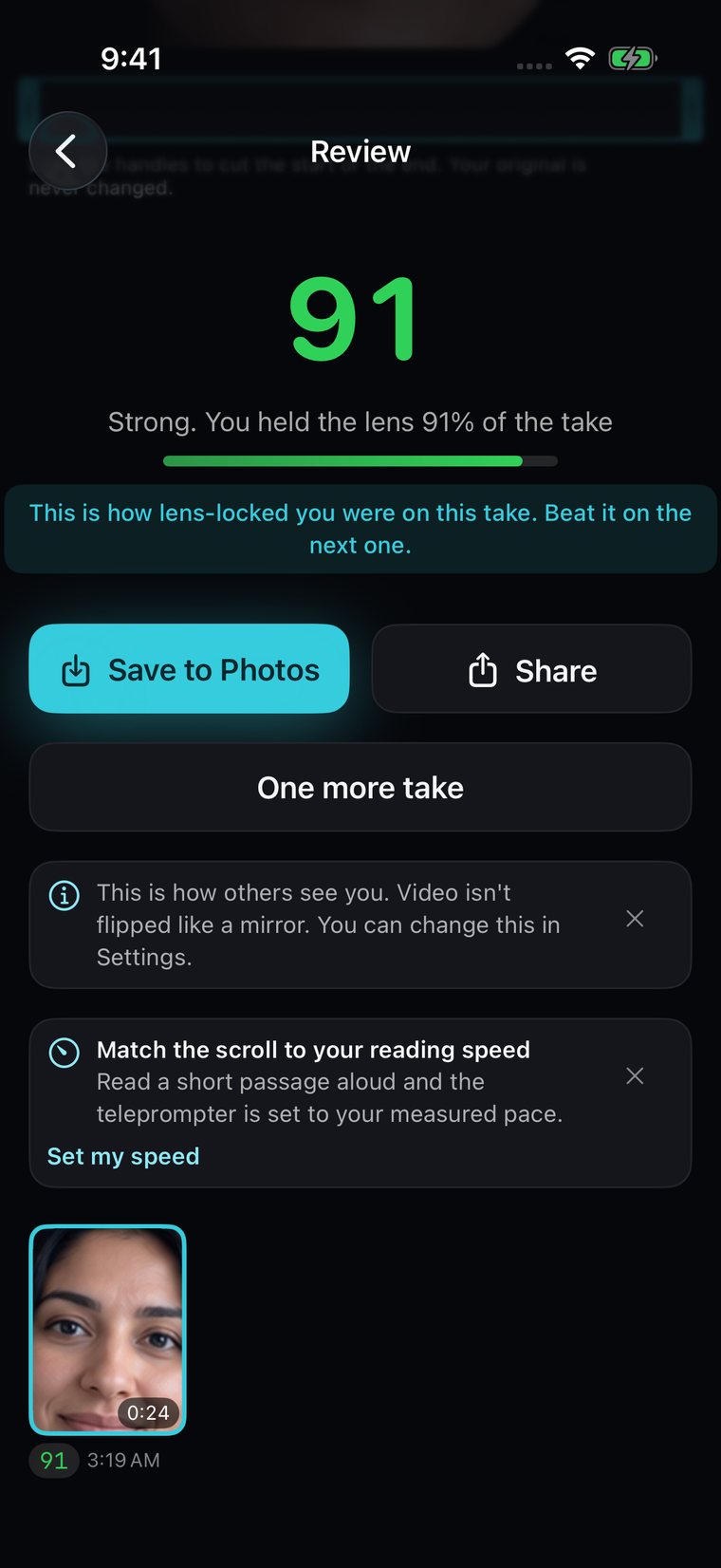
Screenshots are real captures from the app. Please do not alter the interface in them.
Contact
Press, partnerships and support: hello@beonbrand.ca. Journalists and creators testing the app can ask us for Pro access.
Follow EyePrompt on Instagram, TikTok and Facebook.
The story behind EyePrompt · How EyePrompt works · Product facts as JSON
All guides
- Notes on Zoom, Teams or Meet
- Notes on a Mac video call
- Notes on a video call from an iPhone
- AI eye correction vs real eye contact
- A teleprompter hidden from screen sharing
- Can interviewers tell you're reading?
- Video introduction for a job application
- Is a teleprompter cheating?
- Talking-head video on iPhone
- Teleprompter in landscape on iPhone
- Sales and LinkedIn videos
- Read a script while looking at the camera
- Confident on camera
- Teleprompter script format
- Words per minute and speech length
- How far below the camera text can sit
- How to self-tape an audition
- Free webcam teleprompter
- Free online teleprompter
- Eye contact calculator
- Speaking time calculator
- Teleprompter apps compared
- A teleprompter that follows your voice
- What to look for in a teleprompter app
- How EyePrompt works
- Teleprompter for iPad
- Mac and iPhone, one purchase